
Hunter 4G Mini
Compact and reliable.
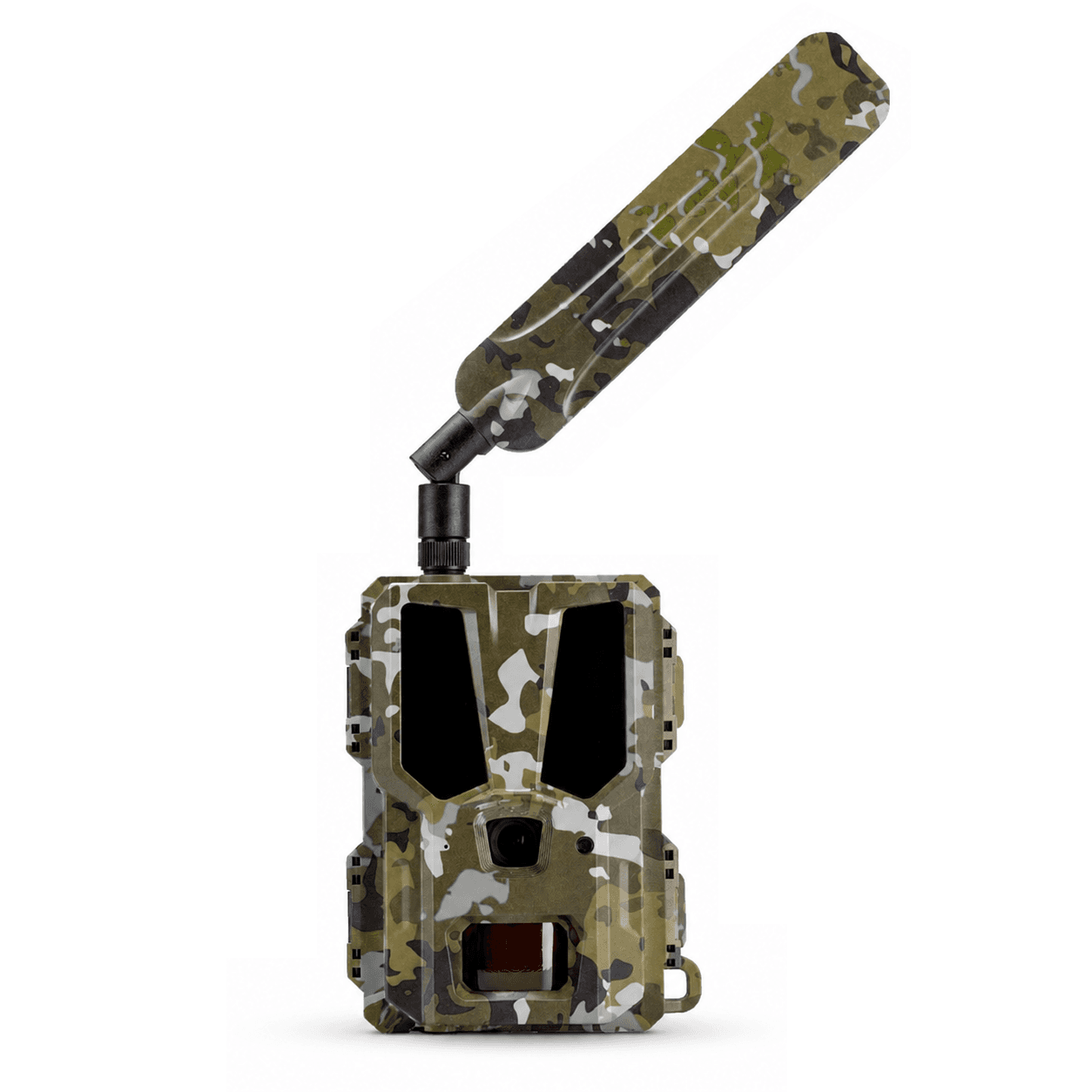
Capture wildlife in impressive detail with our compact 4G trail camera. With AI detection, instant notifications, and months of battery life.
Fresh from the
guides.
View all guides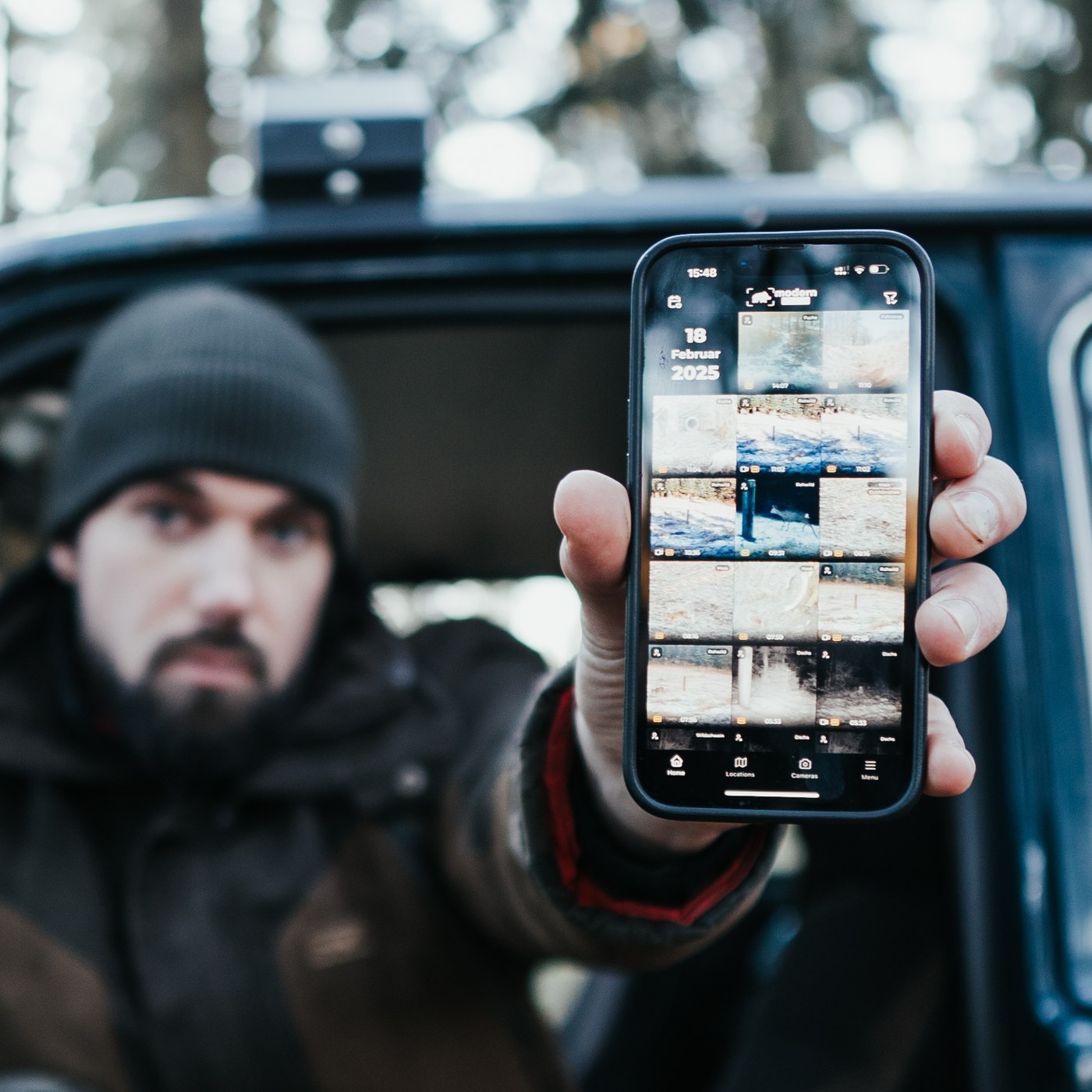
The new Modernhunter app: all features explained
All the recordings from your wildlife cameras in one place: how the new Modernhunter app is structured and how, with the filters for HD, Favorites and AI as well as the calendar, you find exactly the images you're looking for in seconds.
Read article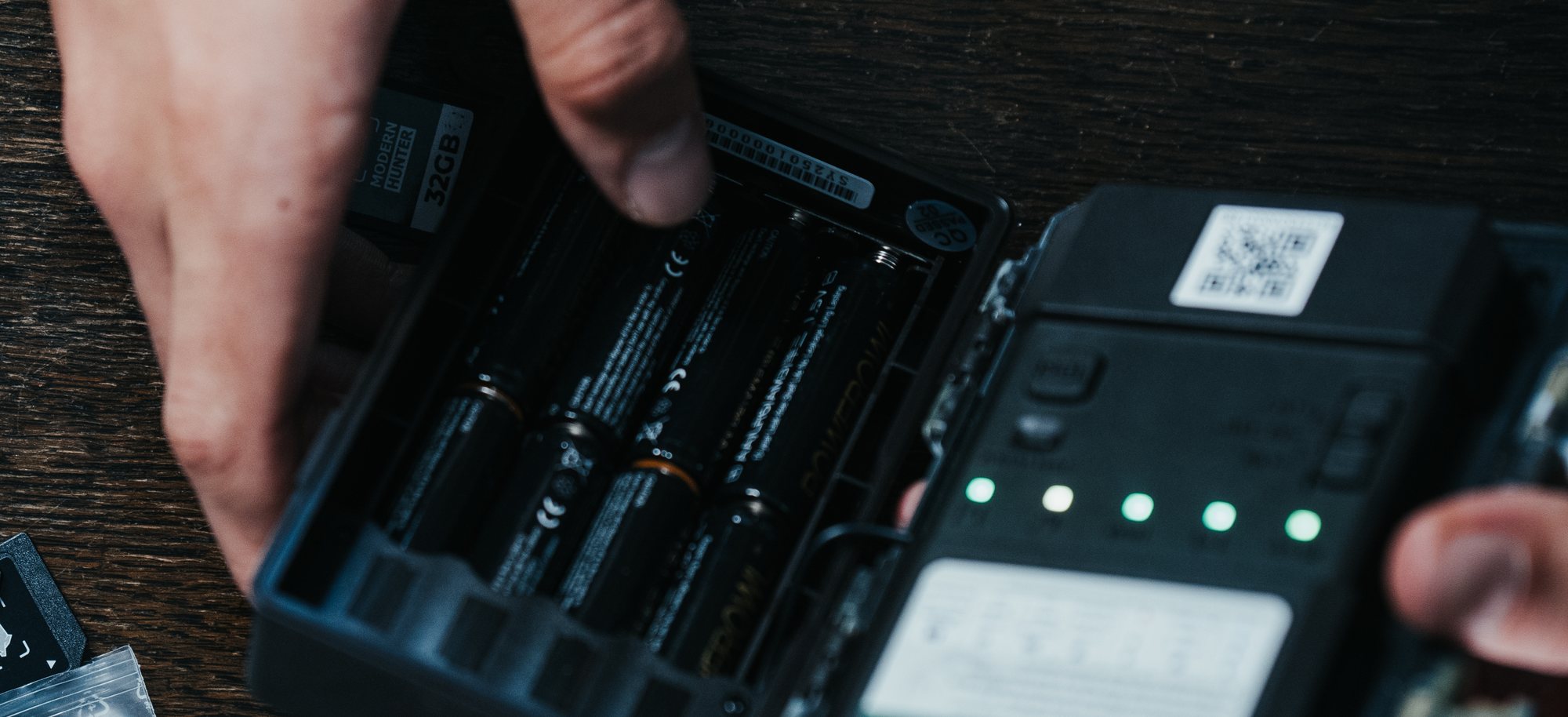
Batteries and rechargeables for trail cameras
Alkaline, single-use lithium, NiMH or lithium-ion: which cell belongs in your trail camera – and why capacity is the wrong number to go by.
Read article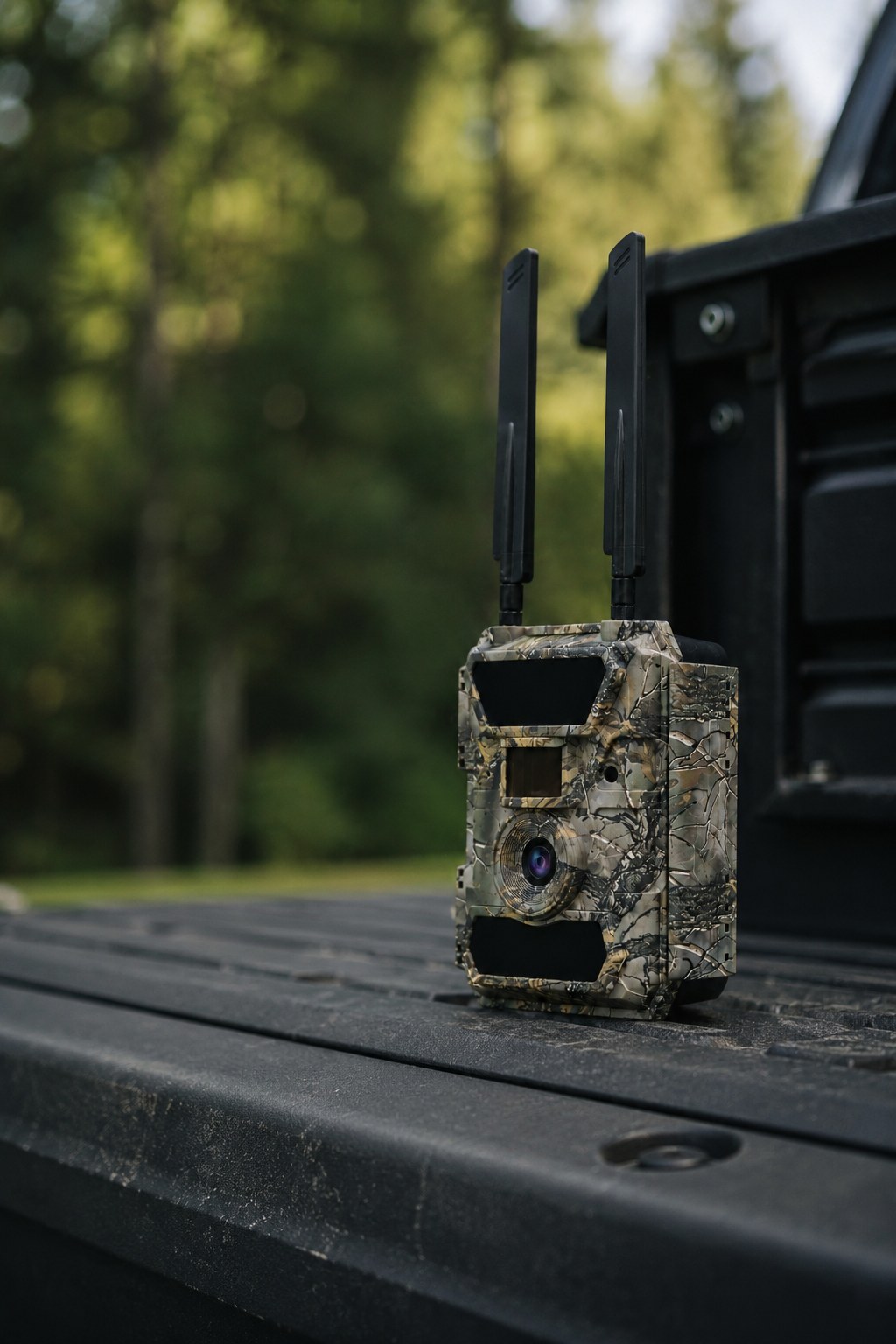

Set up your 4.0CG trail camera for the Modernhunter SIM card
Here is how to set up a 4.0CG trail camera for use with the Modernhunter SIM card: you flash our software – this preconfigures the camera (APN and SMTP already stored) and it stays SIM-lock-free.
Read articleLowest Operating Costs
With costs starting at just 0.8 cents (1 coin) per transmitted photo, we have one of the most affordable solutions on the market while meeting all the requirements you can have for a trail camera SIM card today.
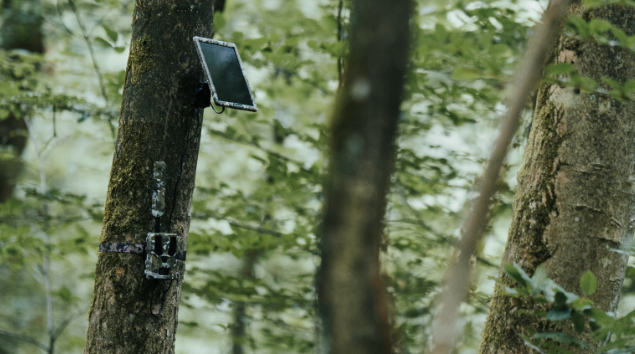
Flexible Power Supply & Long Battery Life
The Hunter 4G Mini can be powered by 8 × AA batteries. For particularly long deployments, it can additionally be connected to a solar panel, battery pack, external battery, or power adapter – ideal for continuous operation in hunting grounds or hard-to-reach locations.
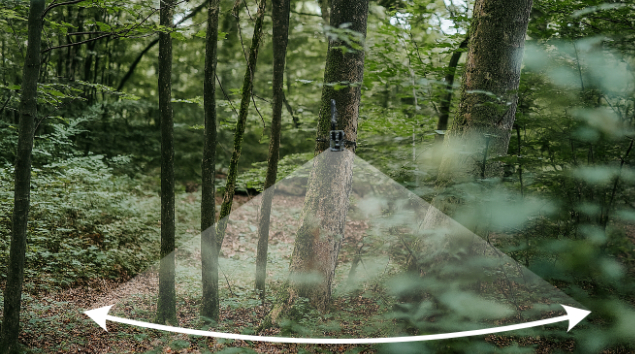
Wide 60° Field of View for More Coverage
The Hunter 4G Mini offers an expanded field of view of 60° – significantly wider than many standard trail cameras with 47° or 50°. This allows you to capture more of the action in a single shot. Thanks to the modern 16:9 recording format, the recordings are perfectly suited for display on smartphones and tablets – ideal for quick overviews on the go in the app.
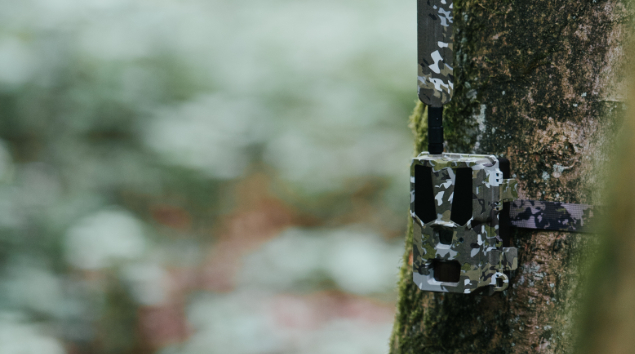
Small and Well Camouflaged
A real advantage is also the compact design. The camera is significantly smaller than many models on the market – and features a genuine camouflage pattern. When hunting, we hunters rely on good concealment – so it only makes sense to optimally hide the technology too. And well camouflaged also means better protected against theft.
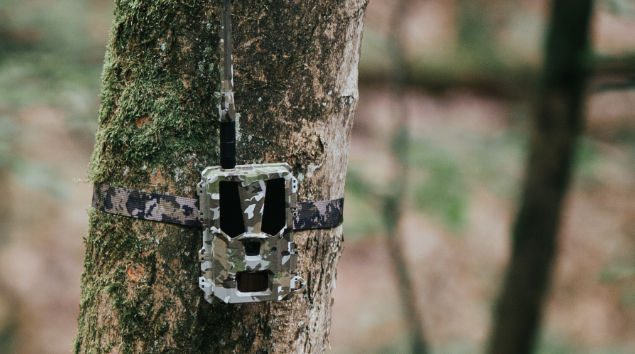
Camera Control
All camera settings can be conveniently made via the Modernhunter app. This eliminates the annoying trips to the camera to change something in the camera menu.
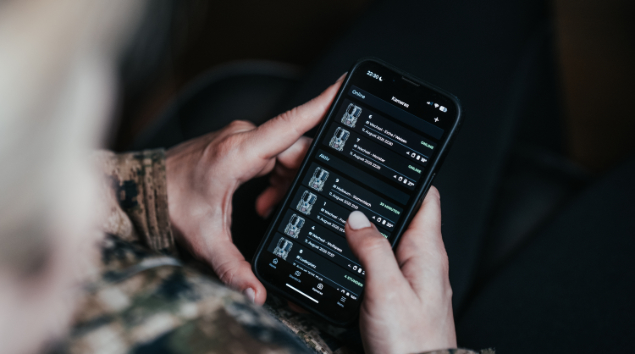
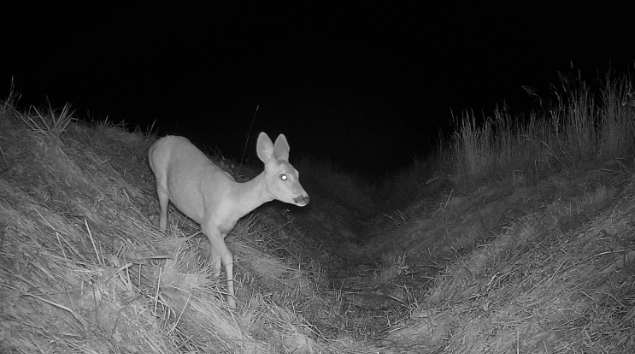
Intelligent Lighting
The adaptive flash management ensures even illumination, prevents overexposure, and conserves battery power at the same time – for more efficiency and better images.
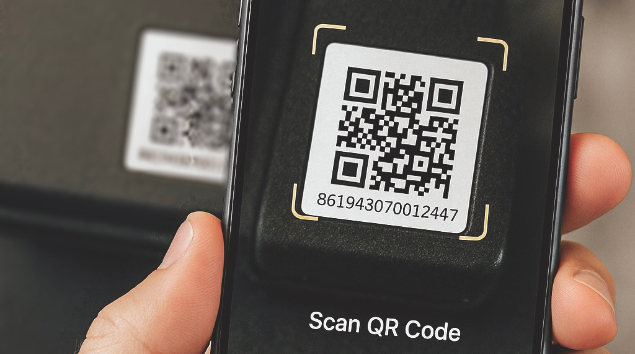
Set Up in Seconds
Once the camera is in setup mode and the LEDs are glowing green, you can simply turn it on – the app takes care of the rest. Whether from home or on the go: all settings conveniently via smartphone.
Extremely Short Trigger Time
The modern PIR Fresnel technology enables a reaction time of under 0.45 seconds – for razor-sharp snapshots without delay.
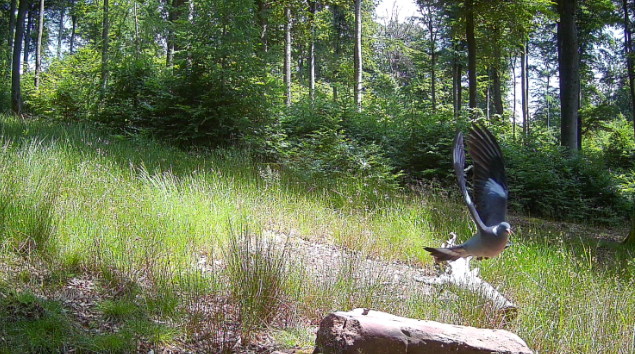
AI Object Detection
The AI analyzes received recordings and reliably detects people, animals, or vehicles – ideal for quick image selection and targeted notifications in the app. With one click, all empty recordings are gone.
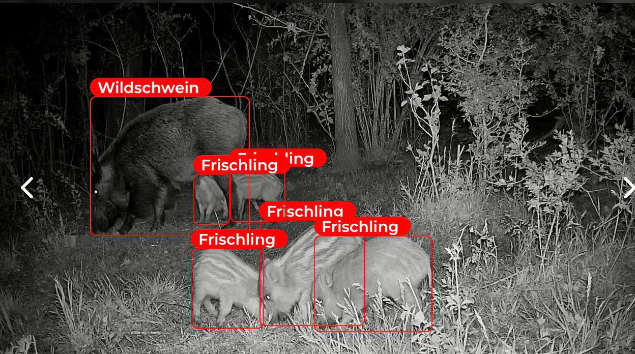
Additional Features Overview
| Funktion | Beschreibung |
|---|---|
| H.265 Video Compression | The camera uses the advanced H.265 compression method – significantly more efficient than conventional standards. This saves data volume and ensures faster transmission without visible quality loss. |
| Over-the-Air Firmware Updates | Updates are automatically installed on the camera – without removal or SD card changes. |
| Videos with Sound | Videos with sound in Full HD with up to 20 seconds length. |
| Loop Recording (Ring Buffer) | When the SD card is full, the camera automatically overwrites the oldest recordings. This keeps it ready to record and continue sending. A 32 GB SD card is included. |
| Working Hours | The camera is only active at specified times. |
Technical Specifications
| Camera Dimensions | 9.6 x 12.9 x 7 cm |
| Height with Antenna | 31 cm |
| Weight | 298 g (incl. antenna) |
| Field of View | 60° |
| Sensor | Passive Infrared (PIR) |
| Detection Range | ~25m |
| Trigger Speed | 0.4 s |
| Cellular Network | 4G with SIM card |
| App Control | Modernhunter App (iOS & Android) |
| Resolution (Original) | 3072×1728 (3MP interpolated to 5MP) |
| Thumbnail Transmission | supported (768×432, 1536×864) |
| Multi-shot | 1P / 2P / 3P |
| File Format | .jpeg |
| Resolution (Original) | 1920 × 1080 (1440P) |
| Thumbnail Transmission | supported (720P, 1080P) |
| Video Length | 5 seconds, 10 seconds, 15 seconds, 20 seconds |
| File Format | .mp4 |
| Mode | Supported (black & white) |
| LED | No-Glow (54 pieces, 940 nm) |
| Local Storage | SD card (8 – 128 GB), 32 GB SD card included |
| Cloud Storage | free |
| Thumbnail Transmission | Via 4G network |
| Original Image Transmission | Via 4G network or USB-C port |
| Remote Update (OTA) | supported |
| Local Update | Via SD card |
| AI Function | included free in Modernhunter App |
| Batteries | 8 × AA batteries per set |
| Charging Port | DC port (12V–2A power adapter) |
| DC Port Size | 4.4 mm × 1.6 mm |
| Waterproof | IP66 |
| Operating Temperature | –20 °C to +55 °C |
| Storage Temperature | –25 °C to +60 °C |
| Operating Humidity | 5 % – 90 % |
| Storage Humidity | 40 % – 60 % |
| Certificates | FCC, CE, RoHS, IP66 |
Changes in design and scope of delivery that serve technical development are reserved.
Scope of Delivery
- Hunter 4G Mini Trail Camera
- Camouflage Antenna
- Camouflage Tree Strap
- 32GB SD Memory Card
- Modernhunter SIM Card